Power Pages is secure. Your configuration might not be.
There has been public reporting recently about a data extortion group pulling Dataverse records out of Power Pages sites. The write-ups have been picked up widely, and the framing in a few of them is that Power Pages itself is the problem.
It is not. Nothing in the reporting points to a platform vulnerability. It points to misconfiguration, and specifically to one combination of settings that a lot of sites have quietly been carrying for years.
I built a deliberately misconfigured site so I could show you exactly what that combination looks like, how to spot it on your own site, and how to close it.
Here is a video walk through of this post:
What the misconfiguration looks like
Here is a simple online ordering site. I am not signed in. I am an anonymous visitor browsing a product catalog, which is a completely normal thing for a public site to allow.
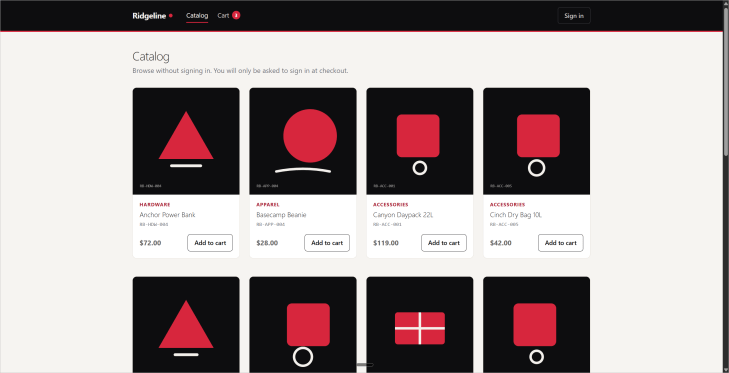
Nothing in the navigation points anywhere near contact data.
There is no page, no list, and no menu item on this site that exposes contacts. But a developer somewhere in the build enabled the contact table for the Web API, because something behind the sign-in needed it.
That is all it takes. A request against the site own /_api route returns the contact table straight out of Dataverse.
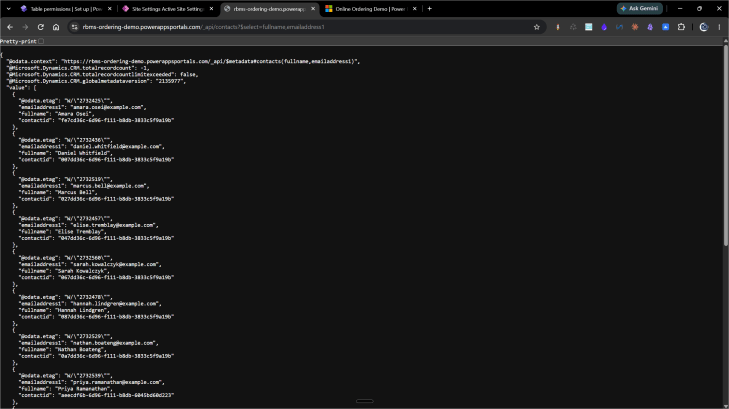
Full names, email addresses, and record IDs, with no sign-in and no user interface involved.
If that made you sit up a little, good. That is the useful reaction. Now let me show you why it happened, because the fix is not complicated once you can see the chain.
The chain from visitor to row
Every request for data on a Power Pages site walks the same path.
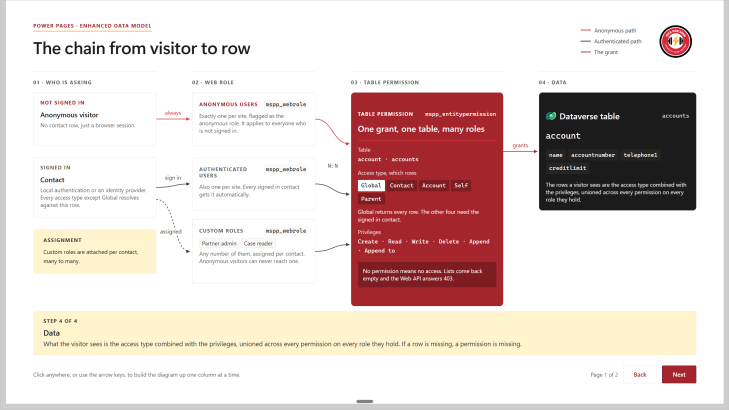
Anonymous visitors and signed-in contacts both reach data the same way: through a web role, through a table permission, and no other way.
A visitor arrives. They are either not signed in, in which case they get the Anonymous Users web role automatically, or they are signed in as a contact, in which case they get Authenticated Users plus any custom roles assigned to them.
From there, the only way to reach data is a table permission attached to one of those roles. No permission means no access. Lists come back empty and the Web API answers 403.
Table permissions are the whole game. This is where your attention belongs.
Three things about them are worth committing to memory:
- Permission first, always. A page, a list, a form, a Liquid tag, or a Web API call reaches nothing unless a table permission on one of the visitor roles covers that table. (Learn)
- Anonymous means Global. Contact, Account, Self, and Parent access types all need a signed-in contact to resolve against. Global is the only access type an anonymous visitor can satisfy. Any Global permission on the Anonymous Users role is public data, full stop. Microsoft states this directly: when the Anonymous users web role is granted access to a table, any user who visits the site can access the data in that table. (Learn)
- Privileges add up. A contact holds every role assigned to them plus Authenticated Users, and gets the union of all those permissions. Nothing subtracts a grant. The widest permission wins. (Learn)
Why the Web API is different
Lists, forms, and Liquid only return what you put on a page. The Web API returns what you ask for, and the person asking writes the query.
It needs two gates open, both of them, on every call.
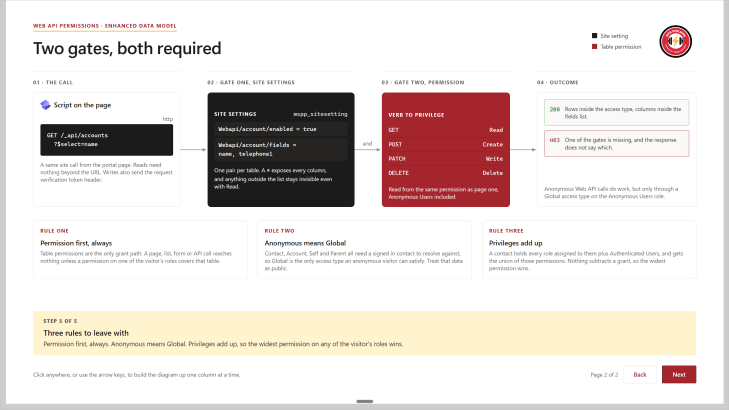
Site settings and table permissions are independent gates. Both have to be open before a single row comes back.
Gate one is site settings. One pair per table:
| Site setting | What it does |
|---|---|
Webapi/<table>/enabled | Turns the Web API on for that table. Default is False. |
Webapi/<table>/fields | The comma separated list of columns the API can touch. Mandatory. |
Gate two is the table permission, exactly the same permission that governs page one of your site. GET maps to Read, POST to Create, PATCH to Write, DELETE to Delete. (Learn)
The leak happens when both gates are open wider than anyone intended. Webapi/contact/enabled set to true, Webapi/contact/fields set to *, and a Global Read table permission on contact assigned to Anonymous Users.
Each of those on its own is defensible. Together they publish your contact table.
Where to look on your own site
Three places, and you can check all three in about ten minutes.
1. Table permissions with the Anonymous Users role
Design studio, Security workspace, Table permissions. Scan the Roles column.
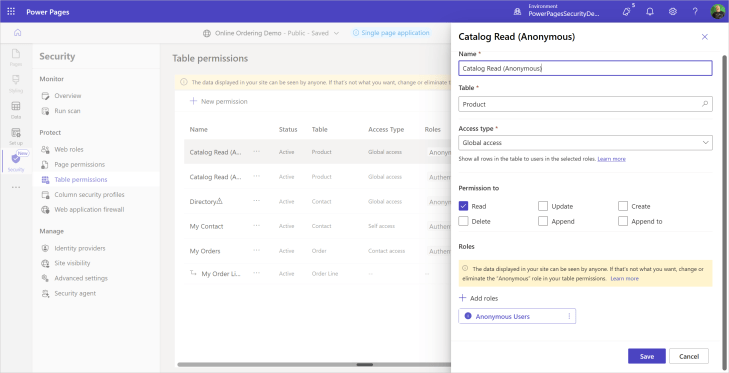
A Global access permission assigned to Anonymous Users. Fine for a product catalog. Not fine for contacts.
Anything on Anonymous Users is public. A product catalog on Anonymous Users is usually fine. Contact, Account, Case, or anything with personal data on Anonymous Users needs a reason, and probably needs to go.
Note the banner the studio already shows you when the site is public: the data displayed in your site can be seen by anyone. That is not decoration.
2. Web API site settings
Portal Management app, Site Settings, filter on Webapi.
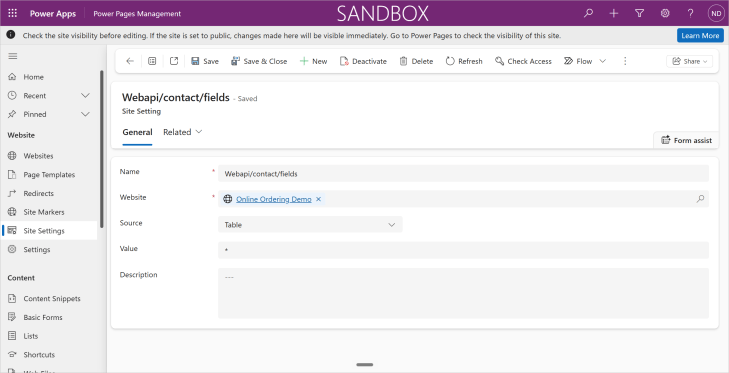
The wildcard in the fields setting exposes every column on the table.
You are looking for two things. Which tables are enabled at all, and whether any of them have * in the fields setting.
Microsoft has now deprecated the wildcard. The documentation states that Web API requests for tables configured with * fail until you configure explicit column names. (Learn) That closes the hole, and it will also break any site that was relying on it, so this is worth checking before your users find it for you.
3. The Authenticated Users Role flag on custom web roles
This one catches people, and I have told Microsoft the naming is misleading.
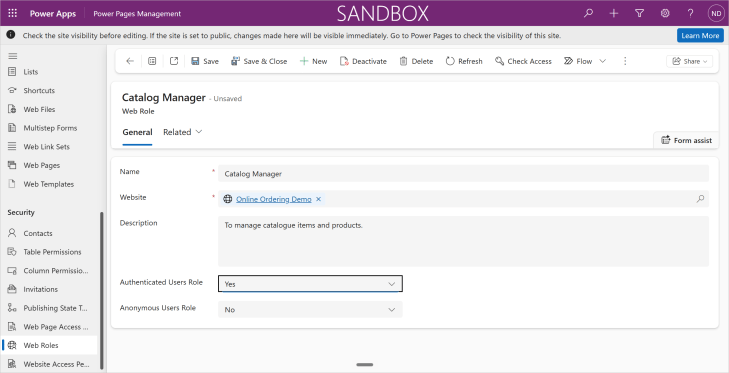
Do not do this. Setting this flag to Yes hands the role to every signed-in user on the site.
You create a custom role called Catalog Manager. You want authenticated users to be able to use it. So you set Authenticated Users Role to Yes, which reads like the obvious choice.
It is not. Setting that flag to Yes makes the role the default role for every authenticated user on the site, whether you assigned them to it or not. (Learn) Everything you granted to Catalog Manager is now granted to everyone who signs in.
Leave it as No on every custom role. Exactly two roles on your site should carry these flags: the out of the box Anonymous Users role, and the out of the box Authenticated Users role. Custom roles get their members by assignment on the contact record, nowhere else.
It is not only about contacts
Here is the version of this that people talk themselves out of.
You have contacts locked down. Accounts locked down. But the product catalog has to be visible to anonymous visitors, so there is a Global Read permission on product for Anonymous Users. Reasonable.
The site is a single page application, so it reads that catalog through the Web API. This applies to regular Power Pages sites using custom code as well. And rather than work out which columns the front end actually needs, someone set the product fields setting to *.
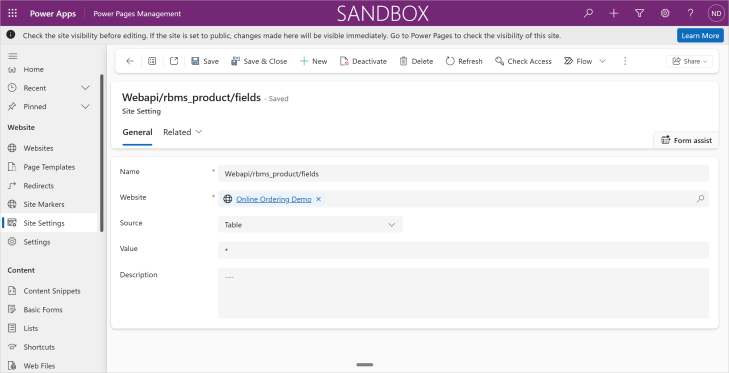
Same wildcard, different table. Feels harmless.
The catalog shows a daypack at $119. Someone curious asks the API for the price column, sees it, and then wonders what else is on the record.
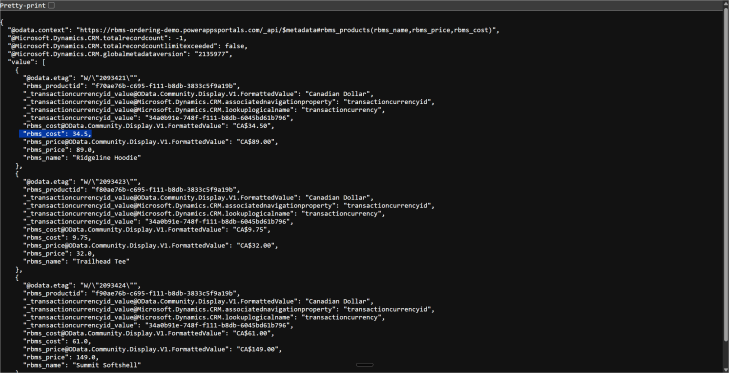
There is your margin, published.
No personal data was exposed here. Nothing in the reporting applies. And you have still handed your cost structure to anyone who thought to ask for it.
Every column in the fields list is a column you are publishing. Treat that setting as a publishing decision, because that is what it is.
The fix
Quick fix, today:
- Replace every
*in a fields site setting with the explicit comma separated list of columns your site actually uses. - Remove the Anonymous Users role from any table permission covering personal or commercially sensitive data.
- Set Authenticated Users Role to No on every custom web role.
- Turn off the enabled site setting for any table nothing on the site is calling.
Longer fix, this sprint:
- Move permissions off Global wherever a relationship exists. Self access for a contact own record, Contact or Account access for related records, Parent access for child tables.
- Where you need to expose some rows of a table but not all of them, use a parent table with a narrow permission and child permissions beneath it, rather than opening the whole table.
- Add column permissions for finer control within a table the Web API can reach. One caveat: column permissions do not apply on sites running the enhanced authorization model. On those sites, use Column security profiles instead, which are in preview at the time of writing. (Learn)
- Write down which tables are Web API enabled and why. Future you will want that list.
Tools that help, and where they stop
The quick scan in the Power Platform admin center flags anonymous access to Dataverse tables.
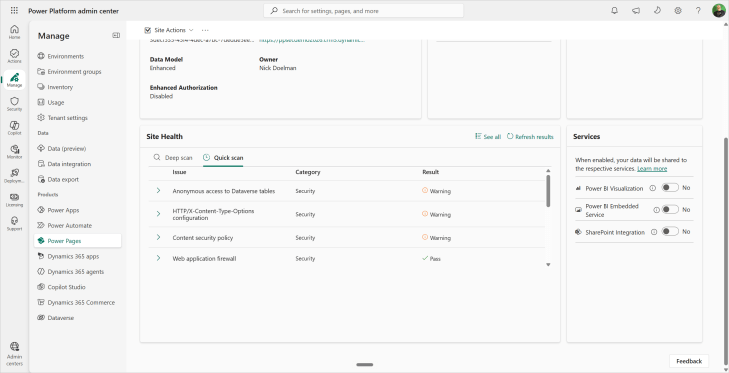
The quick scan tells you the condition exists. It does not tell you which tables.
It tells you the condition exists. It does not tell you which tables, which is the part you need. The deep scan goes further and takes a few hours.
The Power Pages security agent in the Security workspace is worth a look. It is grounded in your site actual configuration, so the answers are specific rather than generic, and it will not apply a change without your explicit approval. It is in preview, so test it somewhere that is not production. (Learn)
You can also pull the site down with pac powerpages download, open it in Visual Studio Code, and point a coding agent at the site settings and table permission files to find the wildcards and the loose Global permissions. That approach scales nicely across a portfolio of sites.
All of these help. None of them replace opening the table permissions list and reading it yourself. The tools tell you what is unusual. Only you know what is intended.
The checklist
Run this against every Power Pages site you are responsible for:
- List every table permission with the Anonymous Users role. Justify each one out loud, or remove the role.
- List every table permission with Global access. Ask whether a relationship based access type would do the job.
- Filter site settings on
Webapi. Note every enabled table. - Find every
*in a fields site setting. Replace with an explicit column list. - For each enabled table, read the column list and ask whether you would publish each of those columns on a public page. Because you are.
- Open every custom web role. Confirm Authenticated Users Role and Anonymous Users Role are both No.
- Confirm exactly one role carries the Anonymous Users flag and exactly one carries the Authenticated Users flag.
- Check site visibility. Confirm the site is public on purpose.
- Run the quick scan, then the deep scan, then check manually anyway.
Power Pages gives you a security model that holds up. Table permissions are deny by default, the Web API needs two independent gates open, and the studio warns you when anonymous access is in play.
It also gives you enough rope to publish your contact table by accident, and it will not stop you.
Which of those nine items are you least confident about on your own site?
Nick Doelman is a Microsoft MVP (8x), podcaster, trainer, public speaker, and competitive Powerlifter. Follow Nick on X at @readyxrm, Instagram, LinkedIN, and Bluesky.
Need Power Platform expertise, training or implementation help? Check out Nick’s website for more details.
Listen or watch the the Power Platform Boost podcast with Nick and co-host Ulrikke Akerbæk every second week for news and updates from the Power Platform community!