NOTE:
After I recorded this video and wrote this blog, I found out about the Azure DevOps MCP Server, which was a lot less hassle to setup than what I show in the video. 🤦♂️ However, at the end of the day, the overall process doesn’t change too much, just a slight change in the tooling setup.
Not much of a blog reader? Here is a link to the video version of this post. For the readers, you can continue below 👇
By the numbers (because I know you are curious)
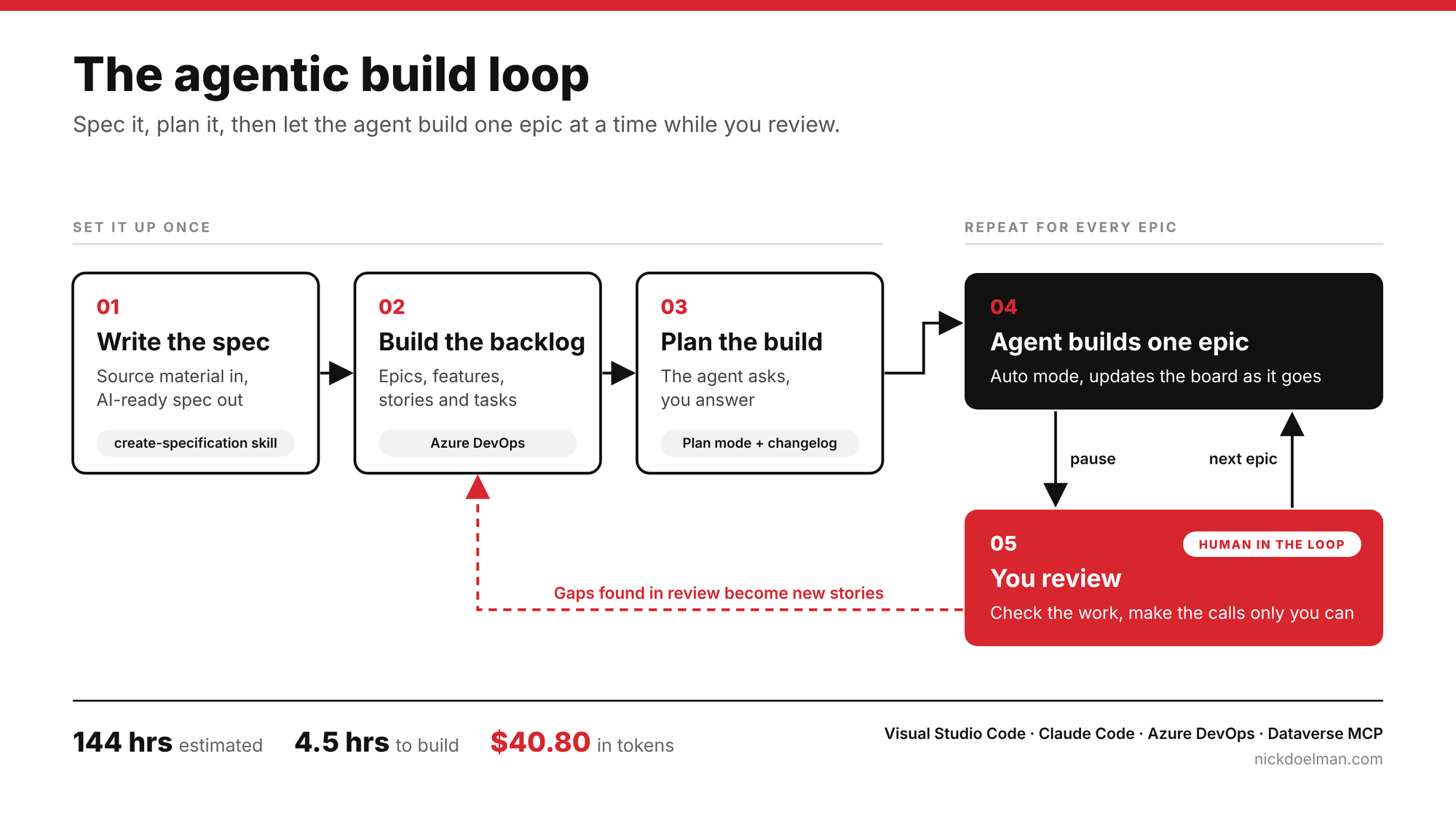
Azure DevOps estimated the backlog at 144 hours.
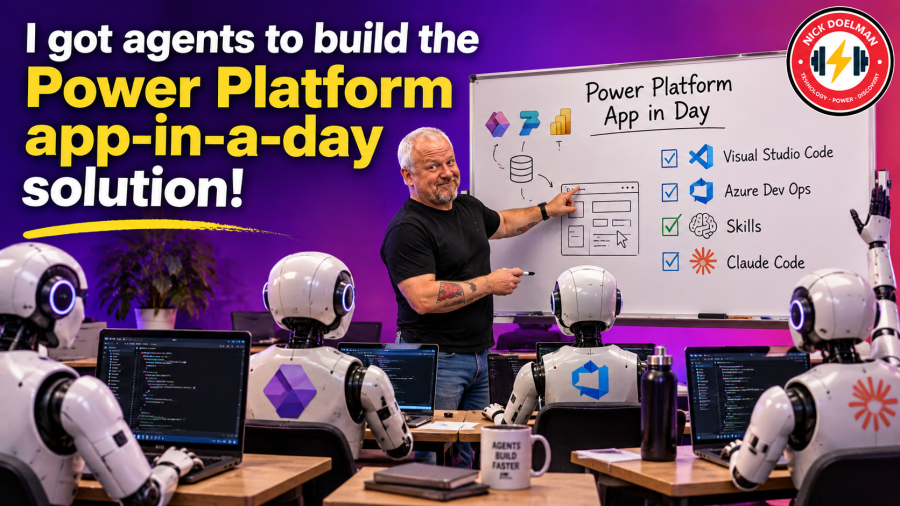
The agent built it in four and a half hours, for $40.80 in tokens.
The more interesting part is how, because I did not type “build App in a Day” and hope for the best (I could have).
I treated this experiment like an actual project, building a spec, creating the backlog, planning, and then (finally) building. In this case (like a lot my work these days) I got the agents to do a lot of the work.
Why App in a Day?
If you started out in the Power Platform, there is a chance that you went first introduced the through “App in a Day” training. You followed the labs and built a canvas app for ordering coffee machines, a model-driven admin app, Dataverse underneath, and Power Automate approval flows. The labs are still on Microsoft Learn.
I wanted to see if an agent could build the whole thing the way we would run a real project: spec, backlog, plan, then build.
One change. I asked for a code app instead of the canvas app. From my perspective, code apps are the better path for this type of front end. Look for future content where I show how I migrated a canvas app to a code app.
Step 1: Set up the tools
Very much like my post “Ditch the maker portal” we will built this (mostly) using Visual Studio Code.
The toolset was:
- Visual Studio Code with the Power Platform Tools extension
- Claude Code as the agent (GitHub Copilot, Cursor or Codex work just as well)
- Azure DevOps for the repo and the backlog
- Skills for Dataverse, the Power Platform, writing specs, and Azure DevOps
I created an Azure DevOps project, cloned the empty repo into Visual Studio Code, and ran pac auth create to connect to my tenant.
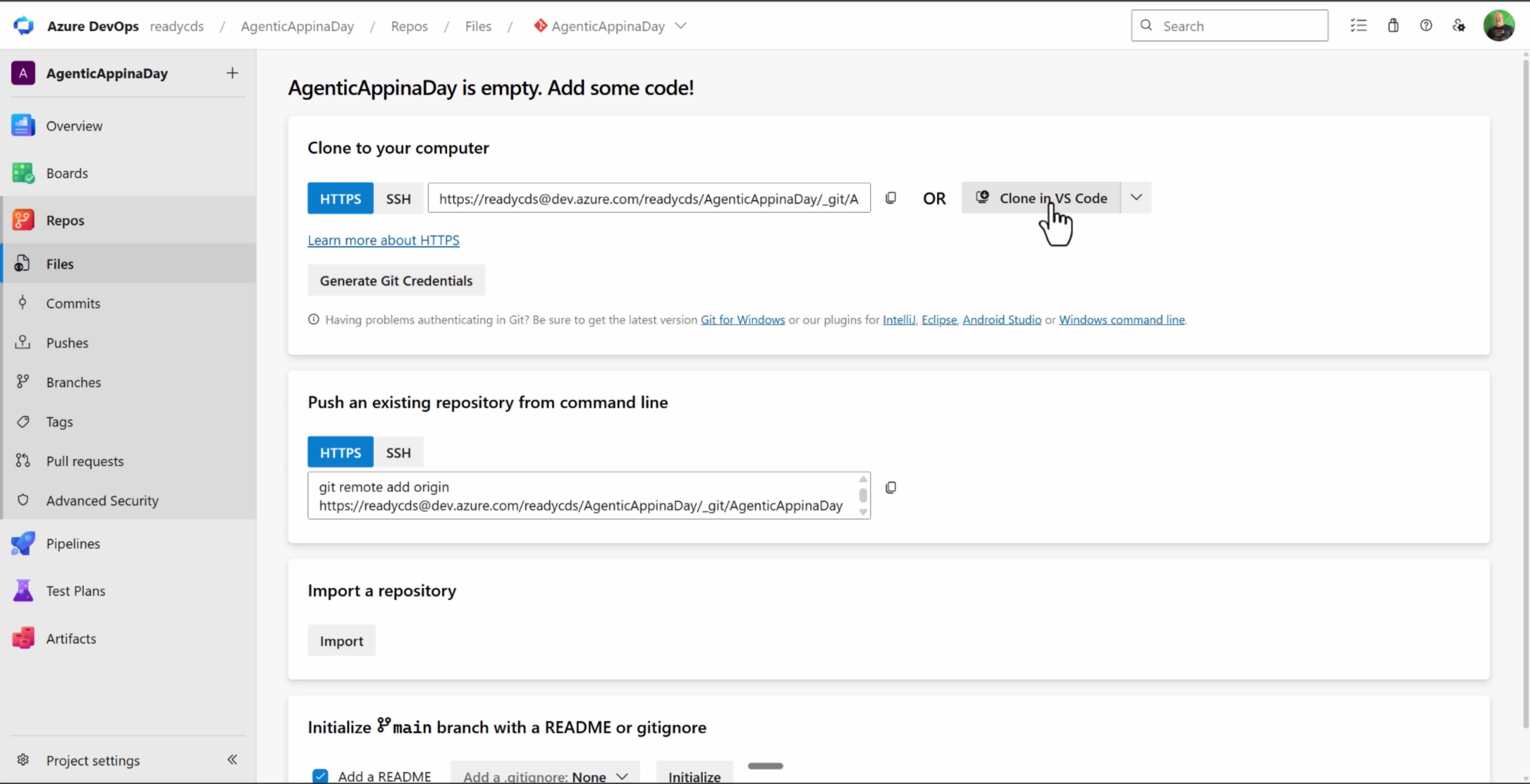
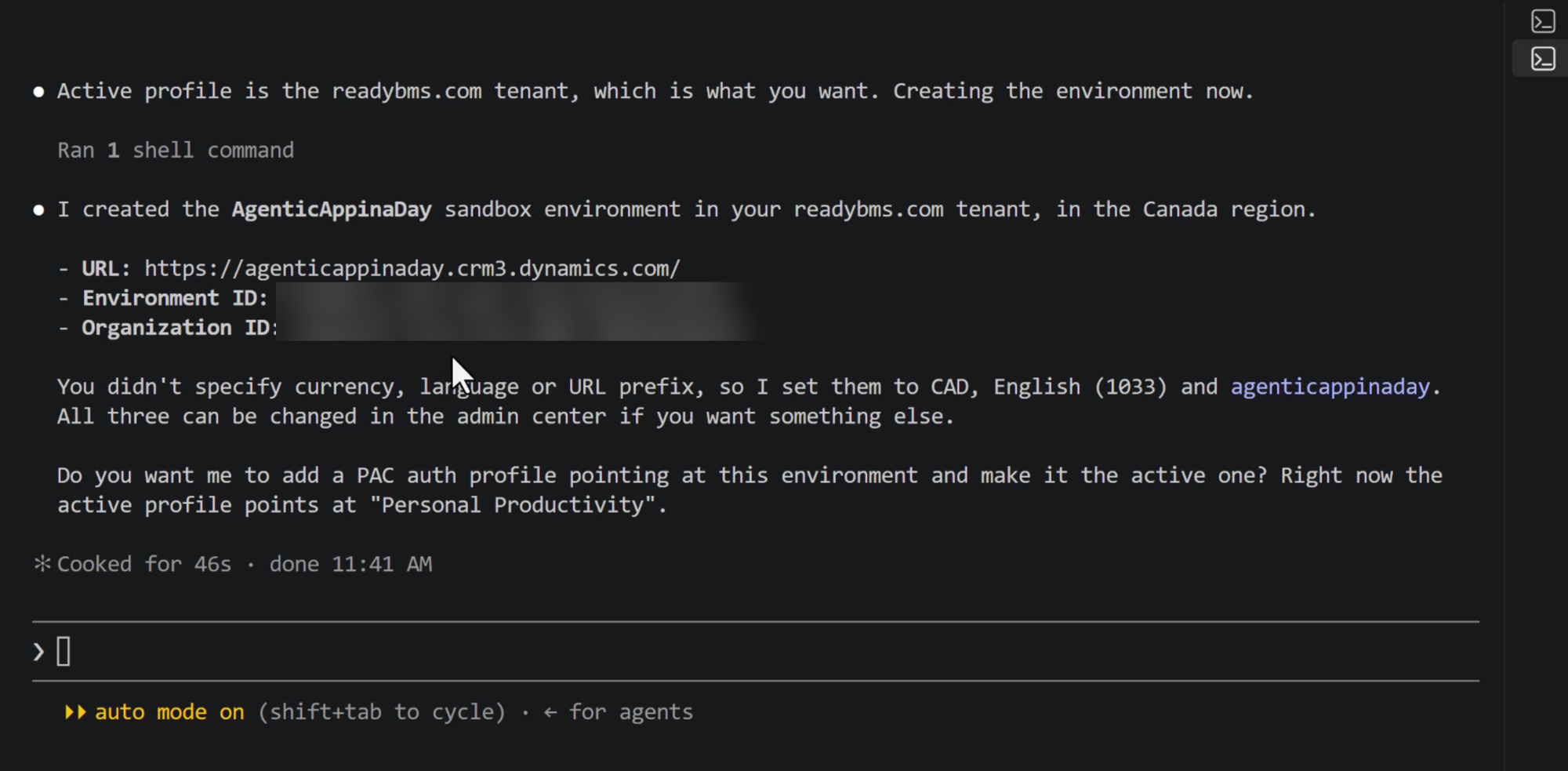
Then I let the agent do the rest of the plumbing. One prompt created a new sandbox environment in the Canada region and pointed an auth profile at it.
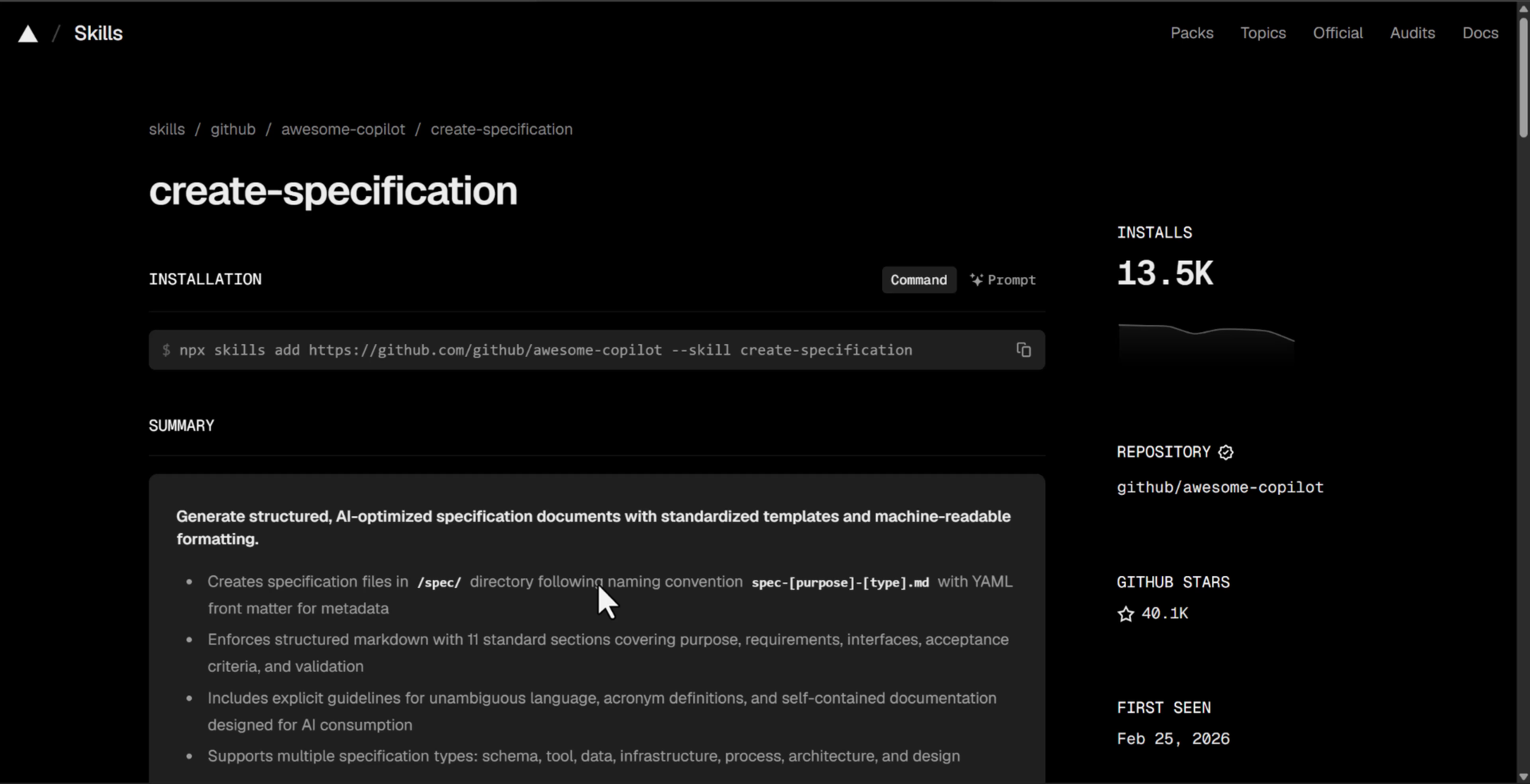
I already had the Dataverse and Power Platform skills installed (I covered that in a previous video). For this project I added two more from skills.sh: create-specification from the Awesome Copilot collection, and the Azure DevOps CLI skill.
A quick note on authentication. Azure DevOps global personal access tokens stop working on December 1, 2026, so I signed in with my Entra ID instead. If you are setting this up now, skip the global PAT.
Last piece: the Dataverse connect command to set up the Dataverse MCP server. It hit snags because my account touches several tenants, and the agent worked through them on its own.
Is this a lot of setup? Yes. But you do it once.
Step 2: Write the spec
This is the boring part that gets skipped. It’s also the part that matters most.
I ran /create-specification, pointed it at the App in a Day learning path on Microsoft Learn, and told it to describe the solution being built in the labs, with a code app in place of the canvas app.
It came back with a full Markdown spec: purpose and scope, the Dataverse data model, interfaces and data contracts, requirements, constraints, acceptance criteria, and even a table mapping every canvas control and formula to its code app equivalent.
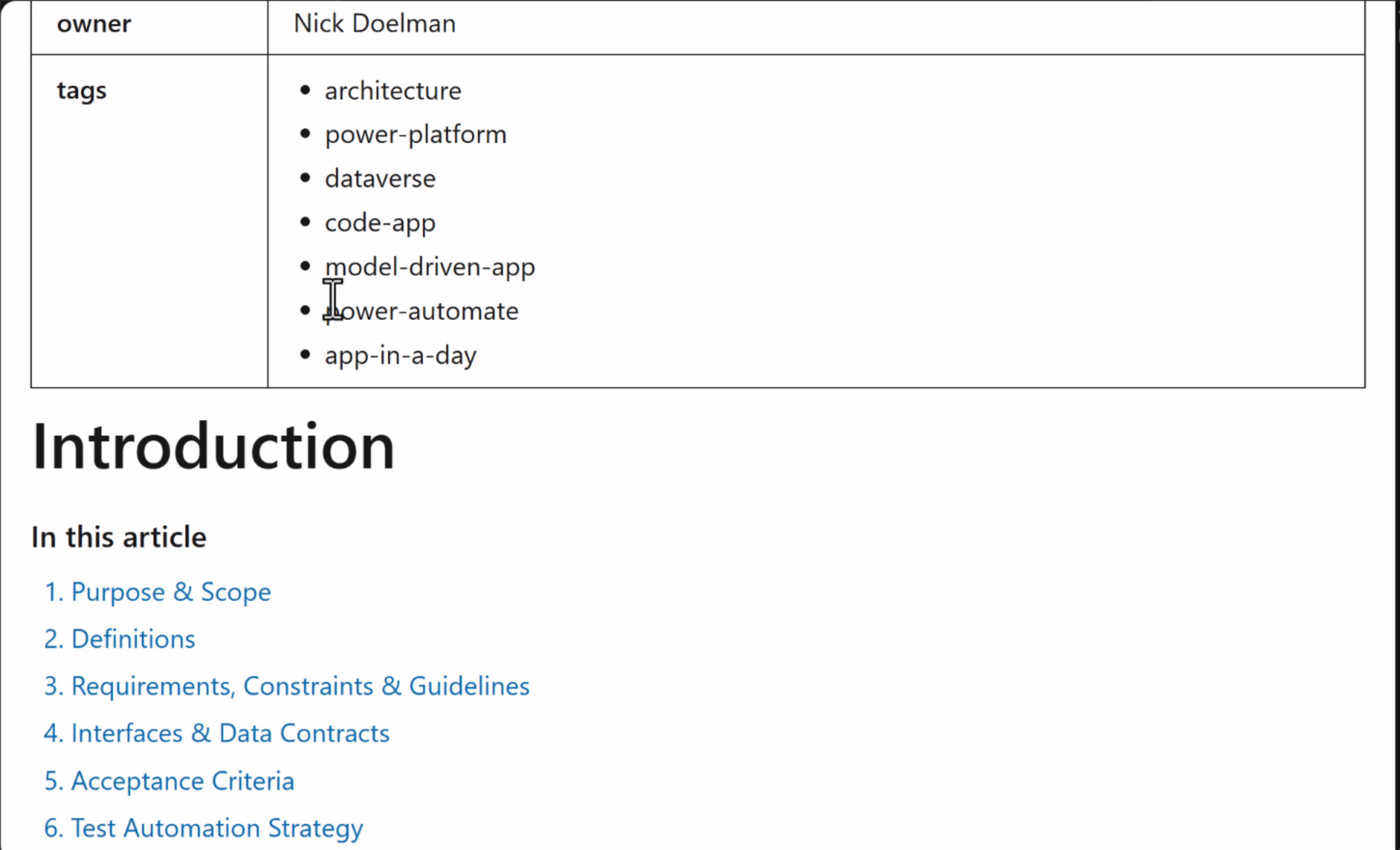
I added the lab’s sample data and machine images to a resources folder and committed everything.
For a client project, the source could be Teams transcripts, old user documentation or whiteboard photos. Same process. Use AI as a tool to help consolidate all the information into a workable solution plan.
Step 3: Build the backlog
Next prompt: create epics, features, user stories and tasks from the spec, and add them to the Azure DevOps project.
You you might ask, “Why bother building out the project in Azure DevOps when you could just build the system from the spec?” In larger projects agents won’t necessarily be doing all the work. Having the entire project laid out in Azure DevOps gives the product managers a good feeling of overall what’s going on, whether it’s human or agent work. It also allows us to break up the tasks and allows us to go in at natural points to review and test. Agentic development works best when you’re trying to not boil the ocean.
It created six epics (environment, data model, code app, model-driven app, automation, and quality and release) with 188 work items in all: features, stories in “As a… I want…” format, tasks, story points, acceptance criteria, and links back to the spec.
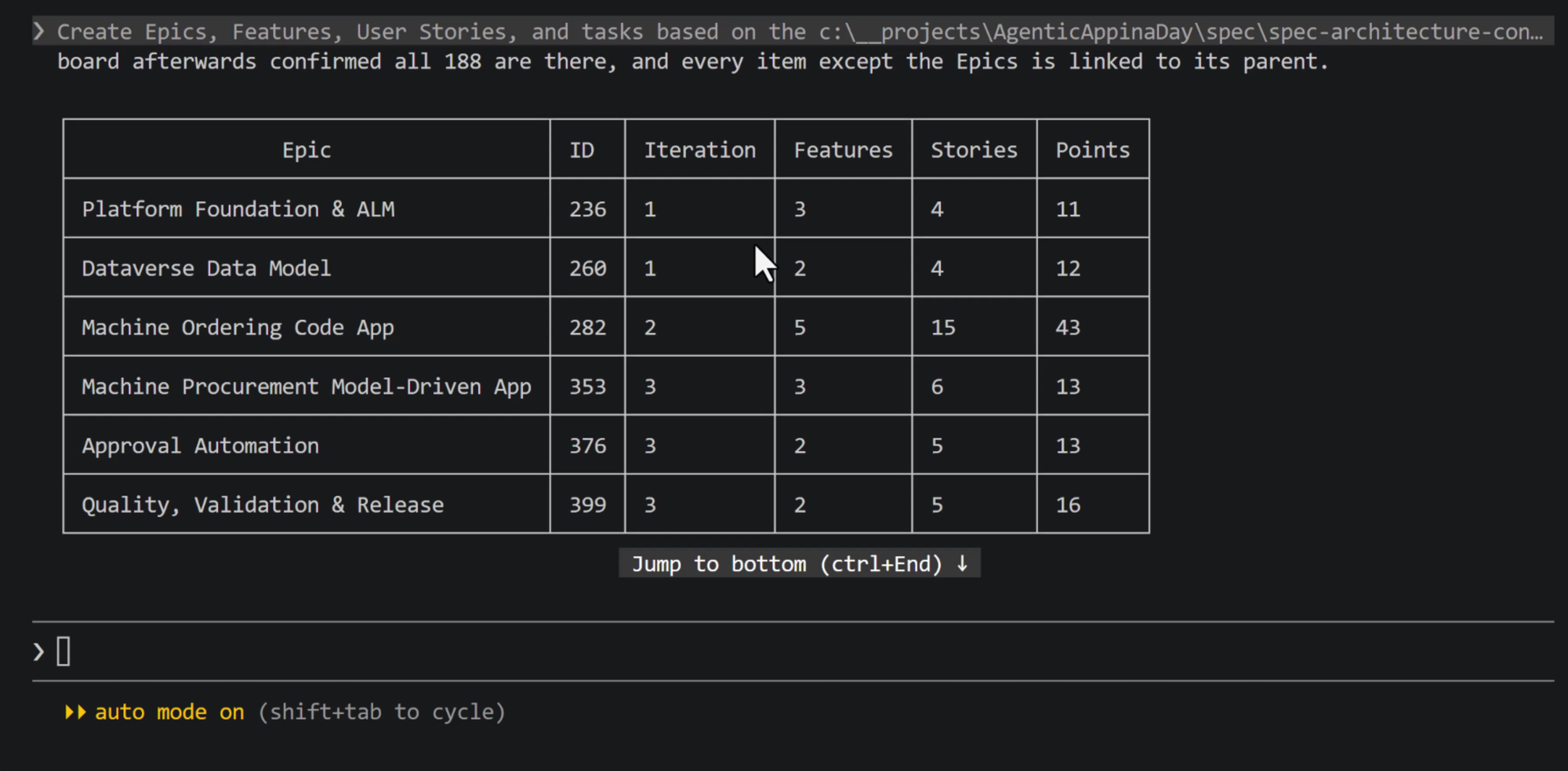
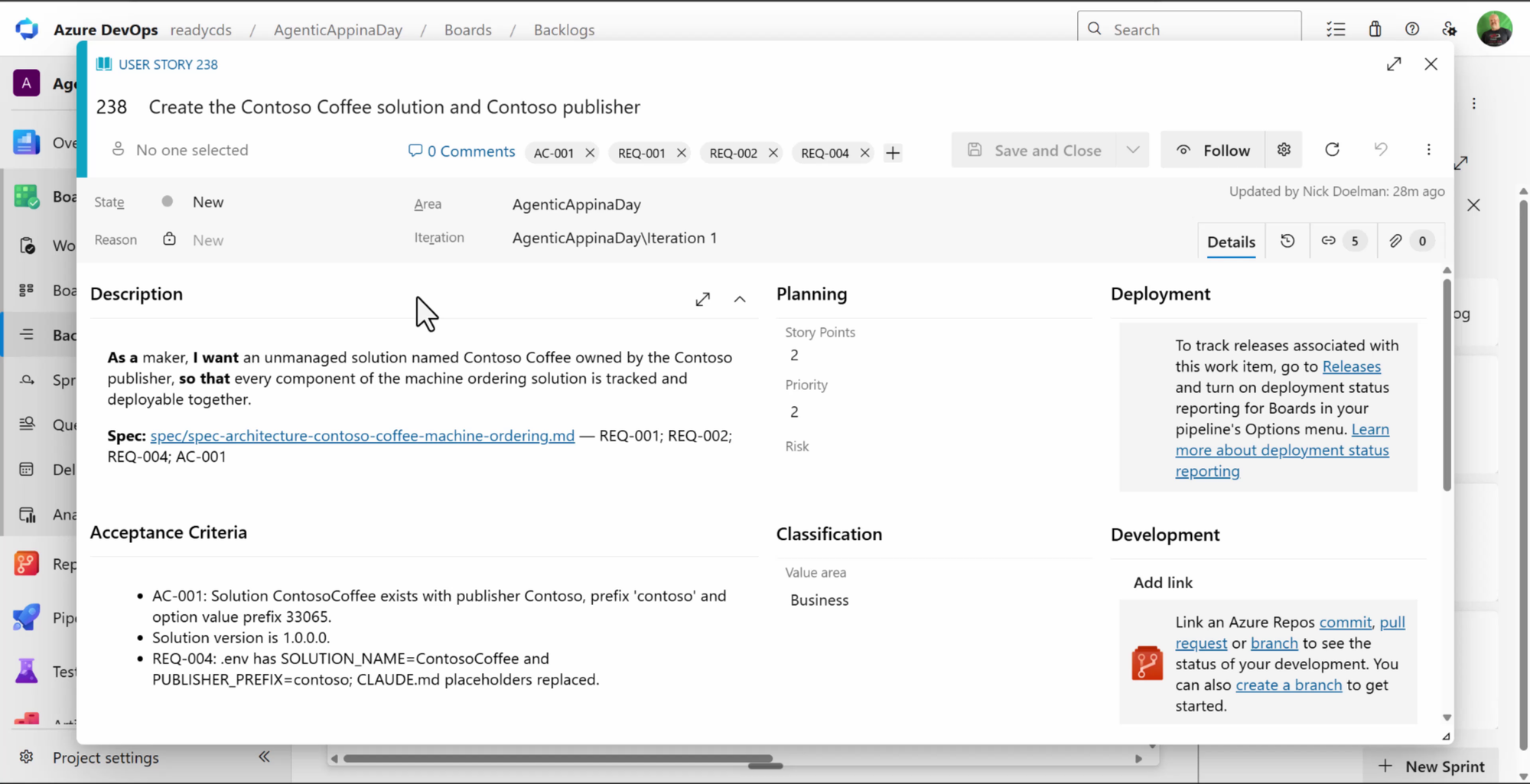
And the estimate: 144 hours. For an app in a day. 🙄 I really am not sure how it came up with this number. Perhaps in a previous life it was someone that was burned by an underestimated project. I know myself that I am usually quite naive about how much time I think it will take to do things. It’s interesting to see how the numbers come up based on all the work that needs to be done.
Even if you never let an agent write code, this step alone is worth it. I have found that over the years a lot of Azure DevOps user stories, features, and tasks are often vague one-liners.
Step 4: Plan before you build
Agents are like junior developers. Give them clear instructions and they do well, but they’re keen. Claude wanted to start building the moment the backlog existed.
Not yet.
First, I had it create a CHANGELOG.md and added an instruction to CLAUDE.md to log every change with a timestamp. Commits give you rollback, the changelog gives you (and your client) a readable record of what was done and why.
Then plan mode: “Plan the build of the project as described in Azure DevOps.”
It came back with questions: where to load the machine photos from, how to keep Azure DevOps in sync, what to do with steps it couldn’t automate.
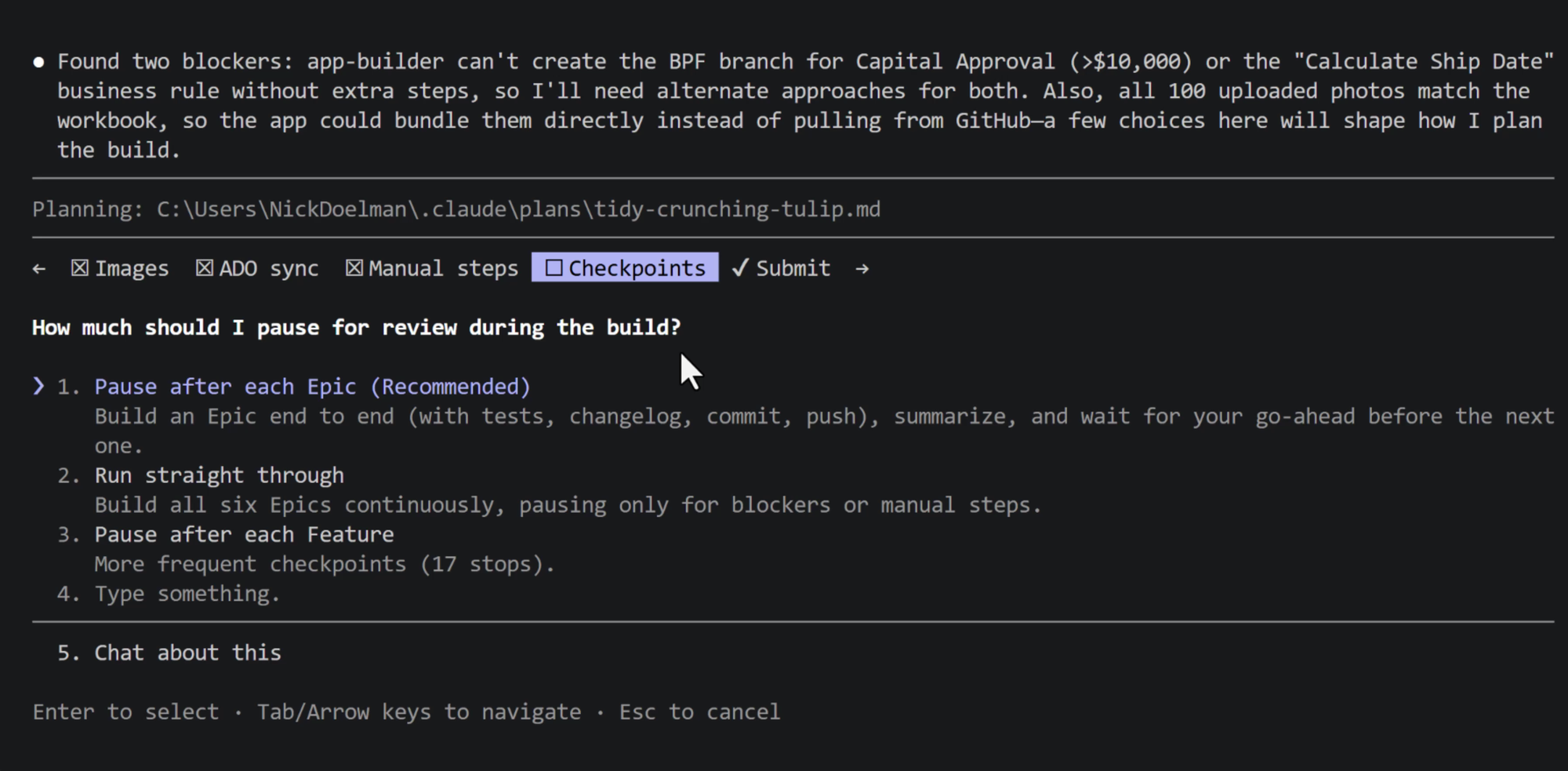
The important answer: pause after each epic for review. That’s the human in the loop.
Step 5: Let it build
I switched on code apps for the environment in the Power Platform admin center (the one thing I did up front by hand), set Claude Code to auto mode, and let it go.
I also turned on remote control, so the agent’s questions came to my phone. When it asked which security role the application user should get, I answered from my phone and it carried on.
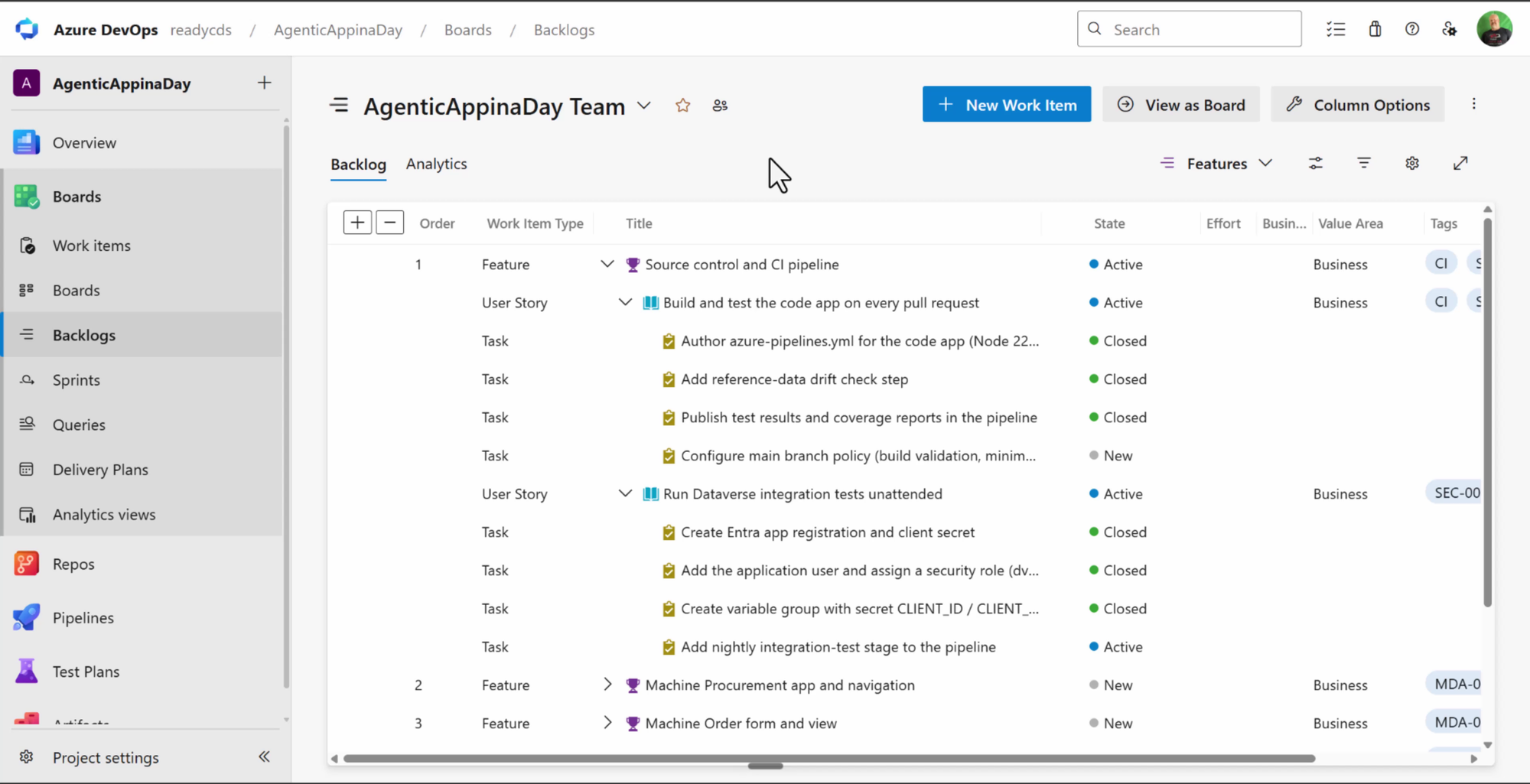
Meanwhile, the Azure DevOps board updated itself as stories moved to active and closed.
It couldn’t do everything. I had to create five connections myself. For Dataverse, I used pac admin create-service-principal and connected with a service principal, so the flows don’t break when my password changes. Outlook, Teams and Approvals used my own account.
Step 6: Check the work
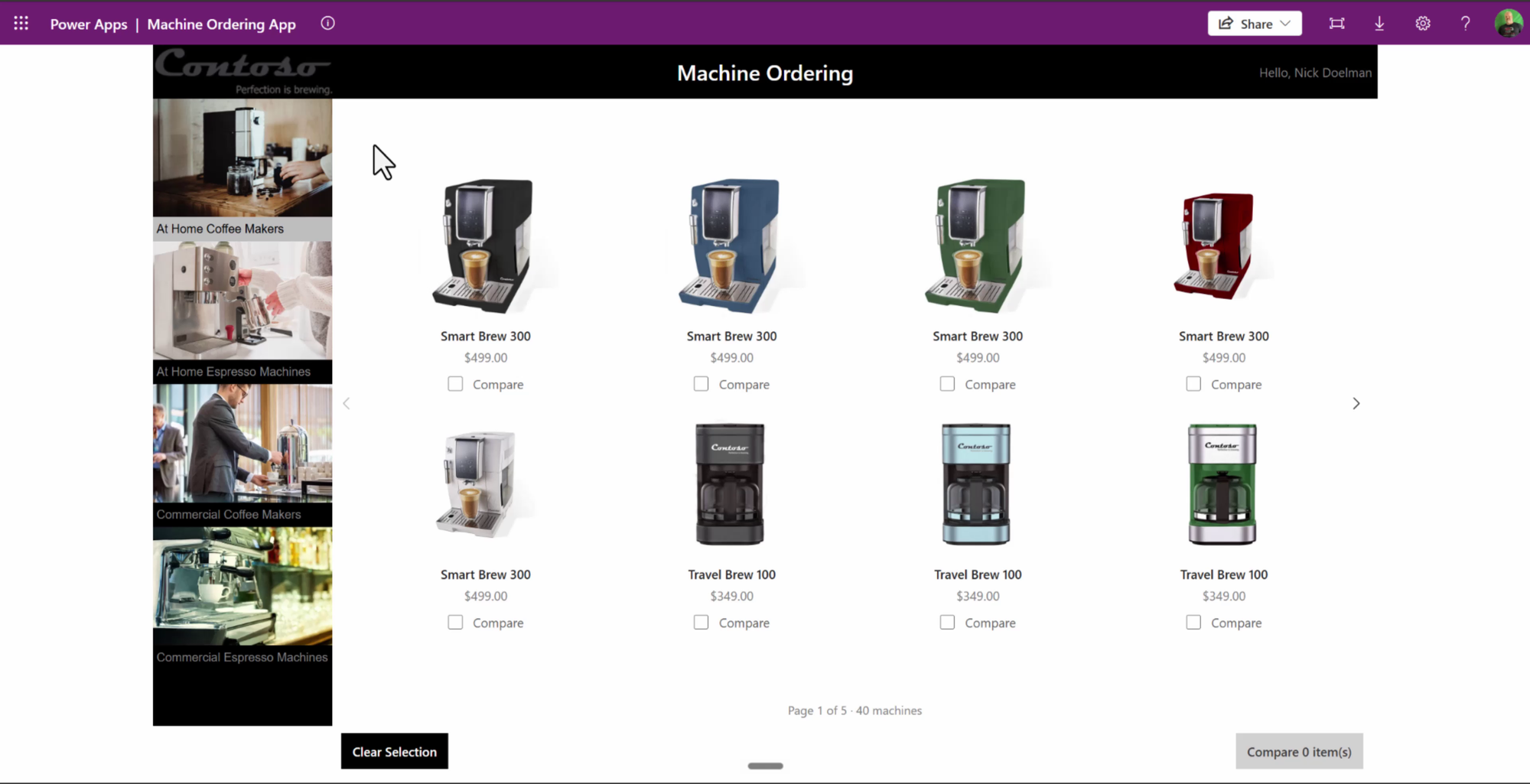
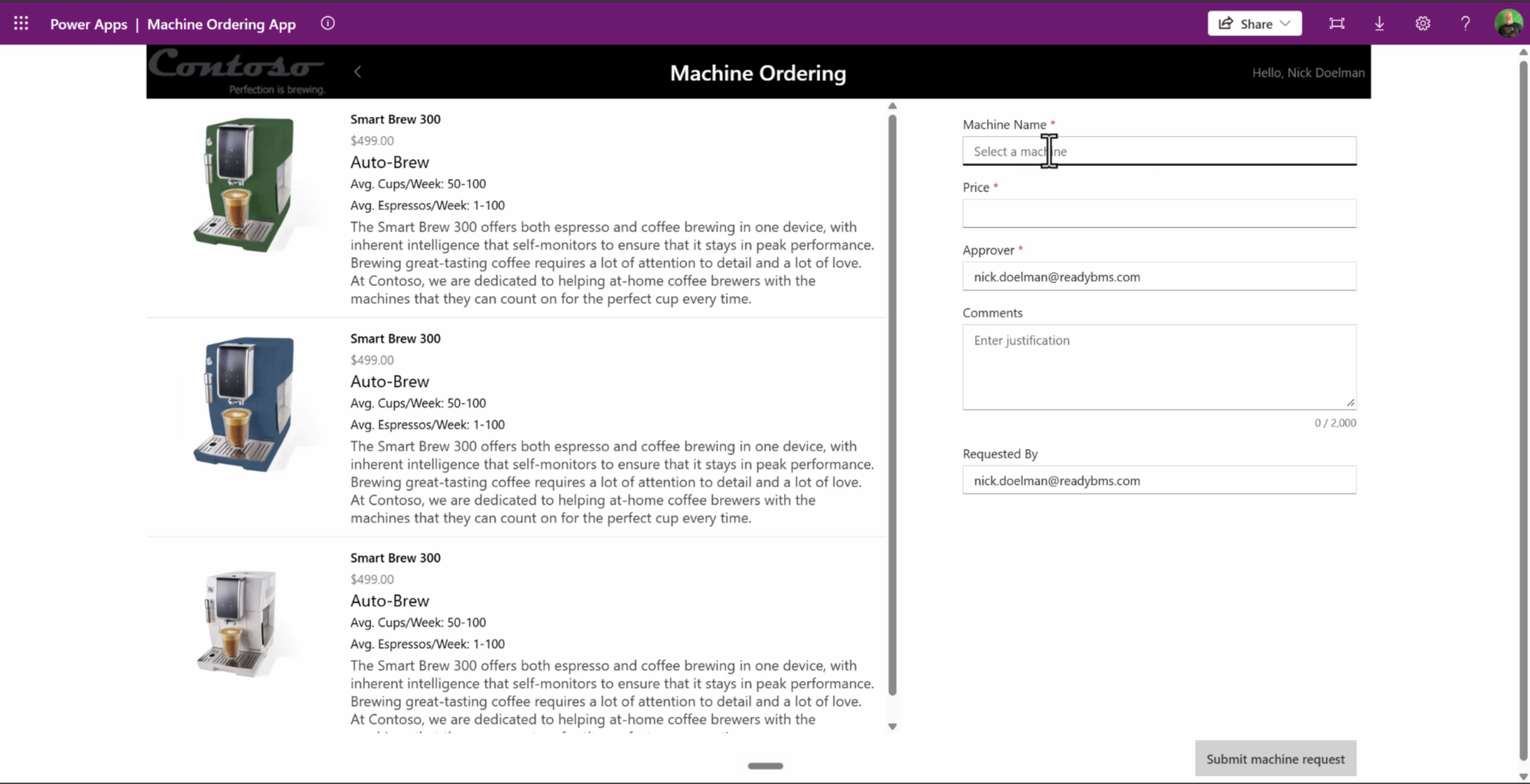
The code app. It looks very much like the canvas app you’d build in the lab. Machine images loaded, compare worked, orders submitted.
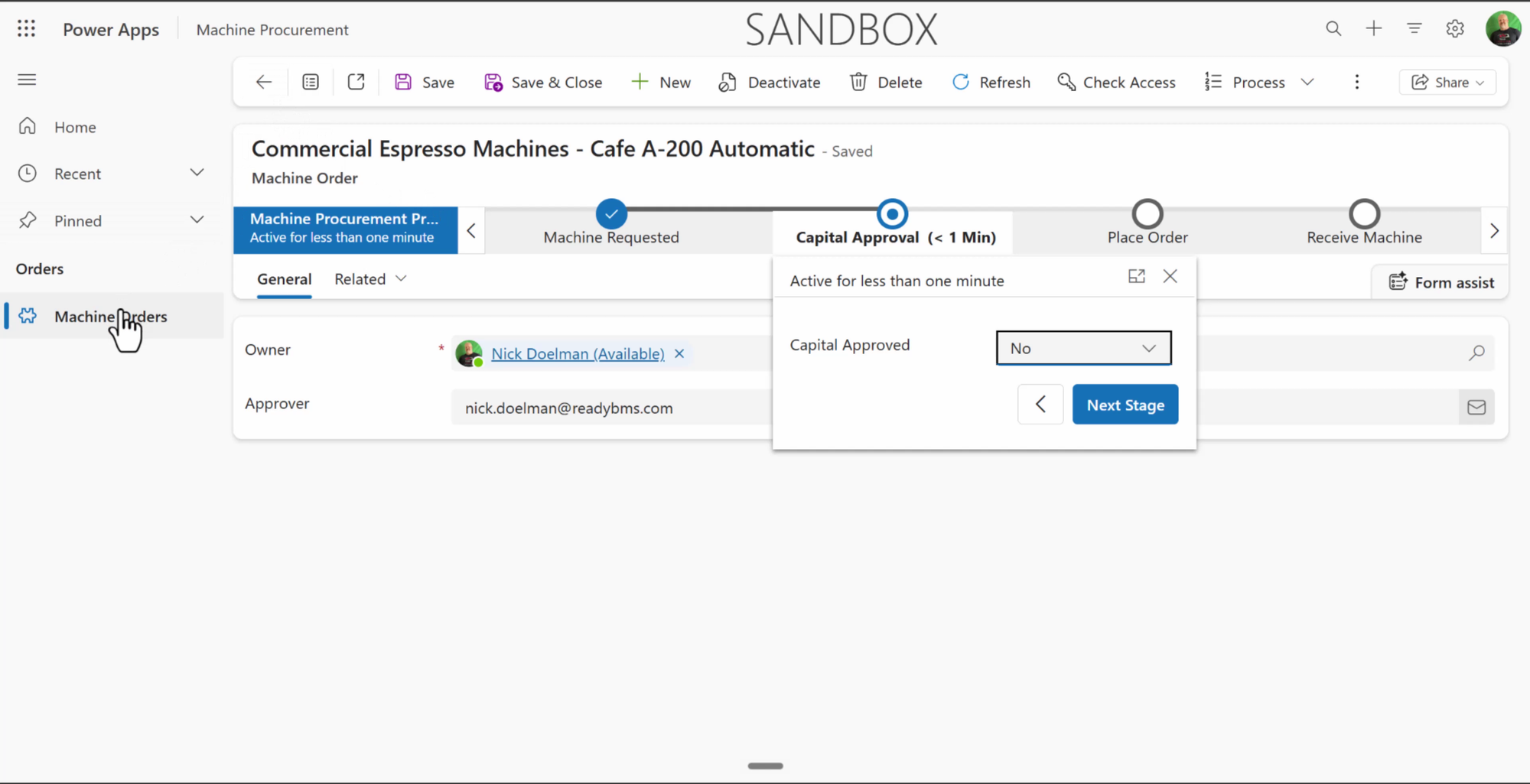
The model-driven app. Thinner. The forms need work. The business process flow was there, and the capital approval stage showed up correctly for orders over $10,000.
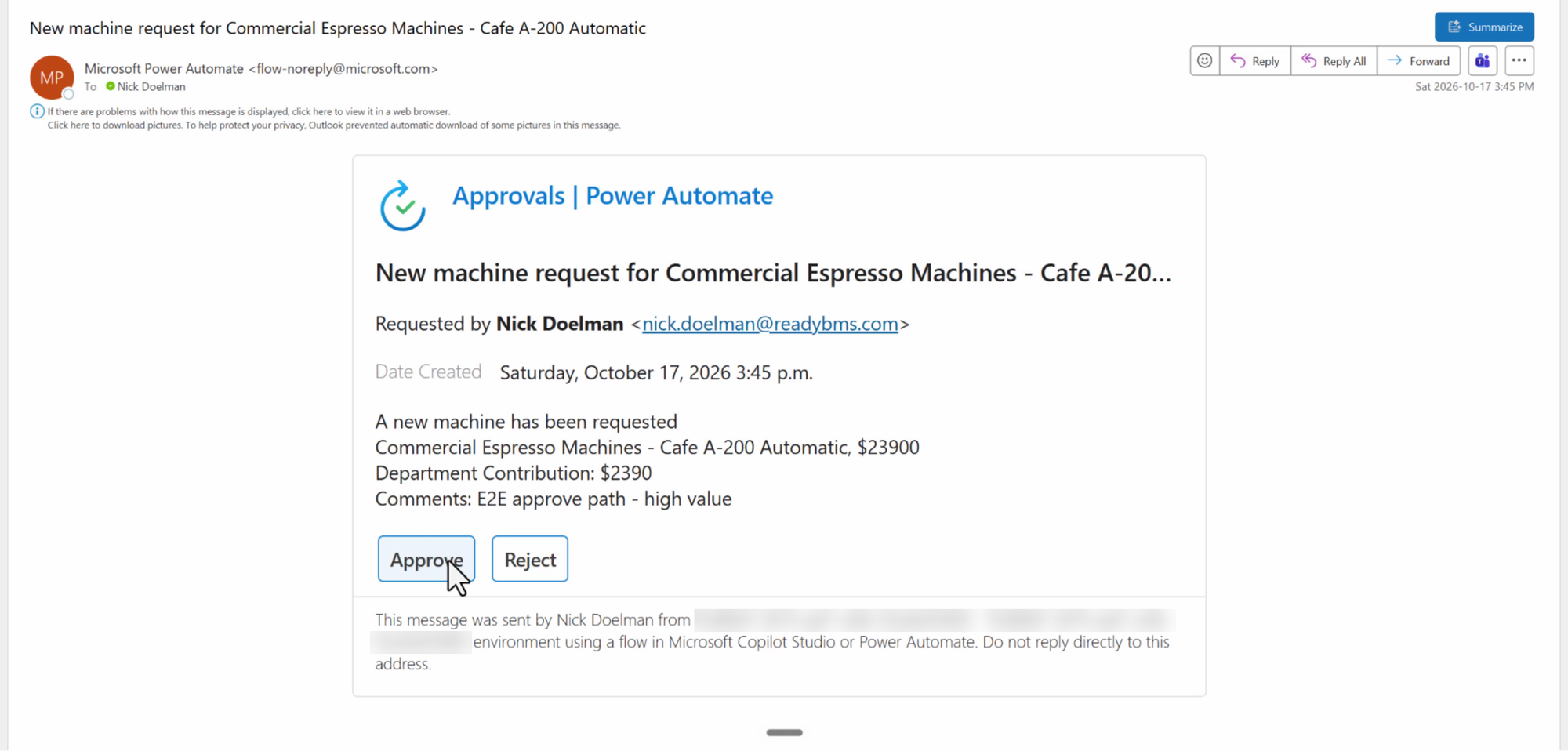
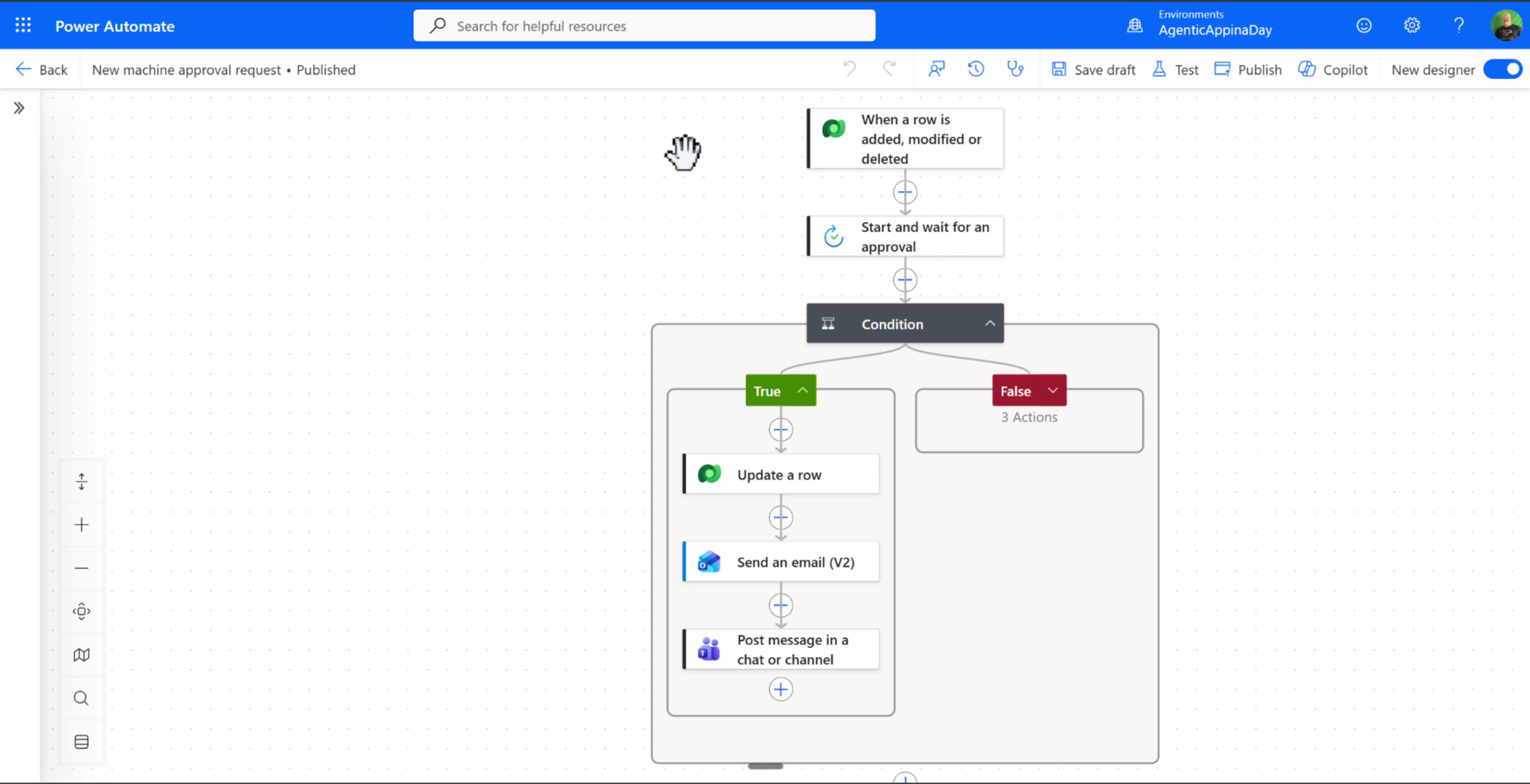
The flows. I approved one order and rejected the other from Outlook. Both statuses updated in Dataverse and posted to the Teams channel. I never opened the flow designer to build it.
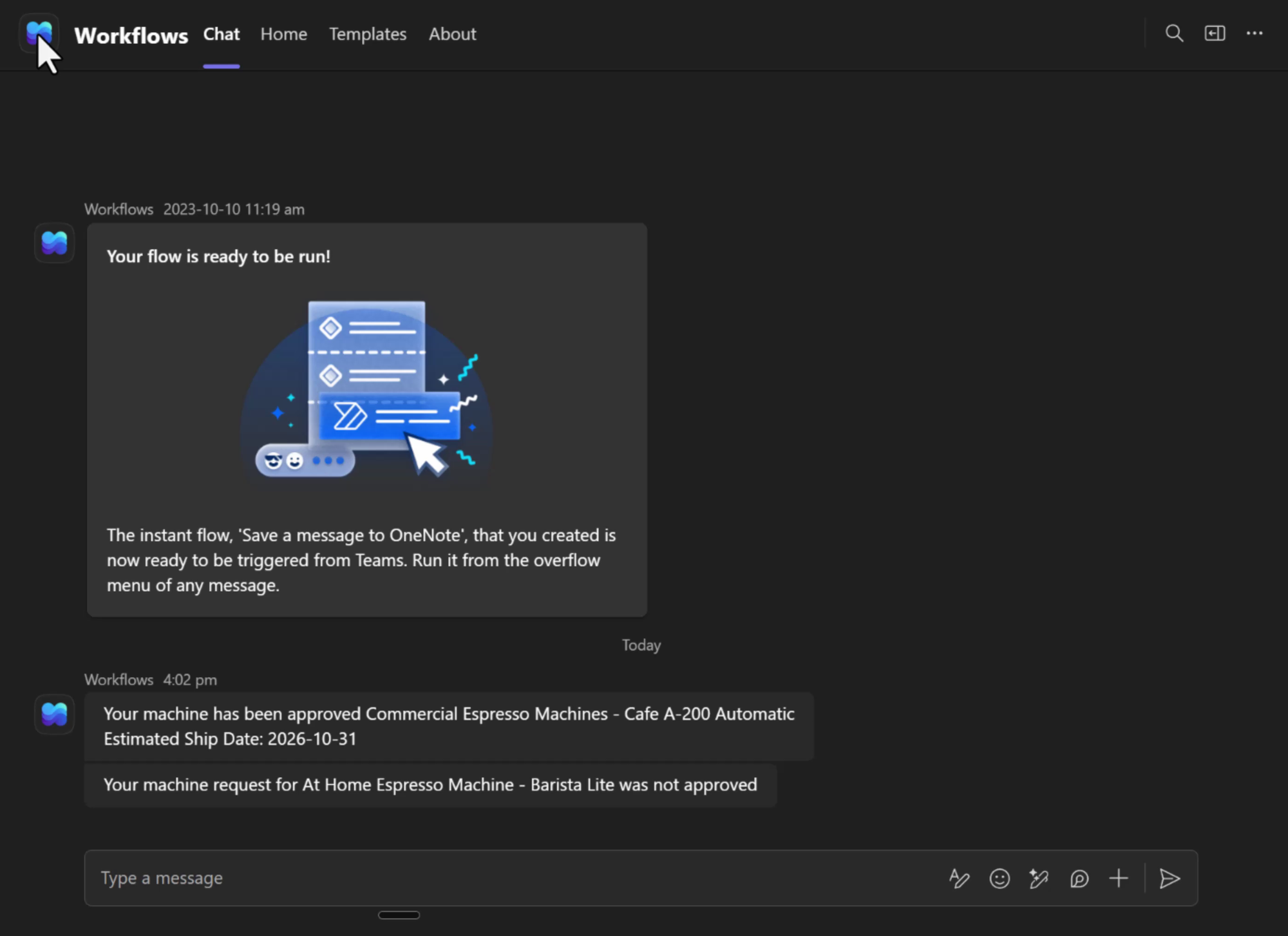
What it missed or did differently:
- The dashboard charts didn’t get built (closed as won’t do; a generative page would be a better answer anyway)
- Back office security roles weren’t in the spec, which is on me for not reviewing closely enough. It flagged the gap and I added a story
- It got creative with the business rule, which I still need to look at
- It opened a pull request and asked me to approve it, even on a one-person project
Every one of those is a review conversation you’d have with a junior developer.
What it cost
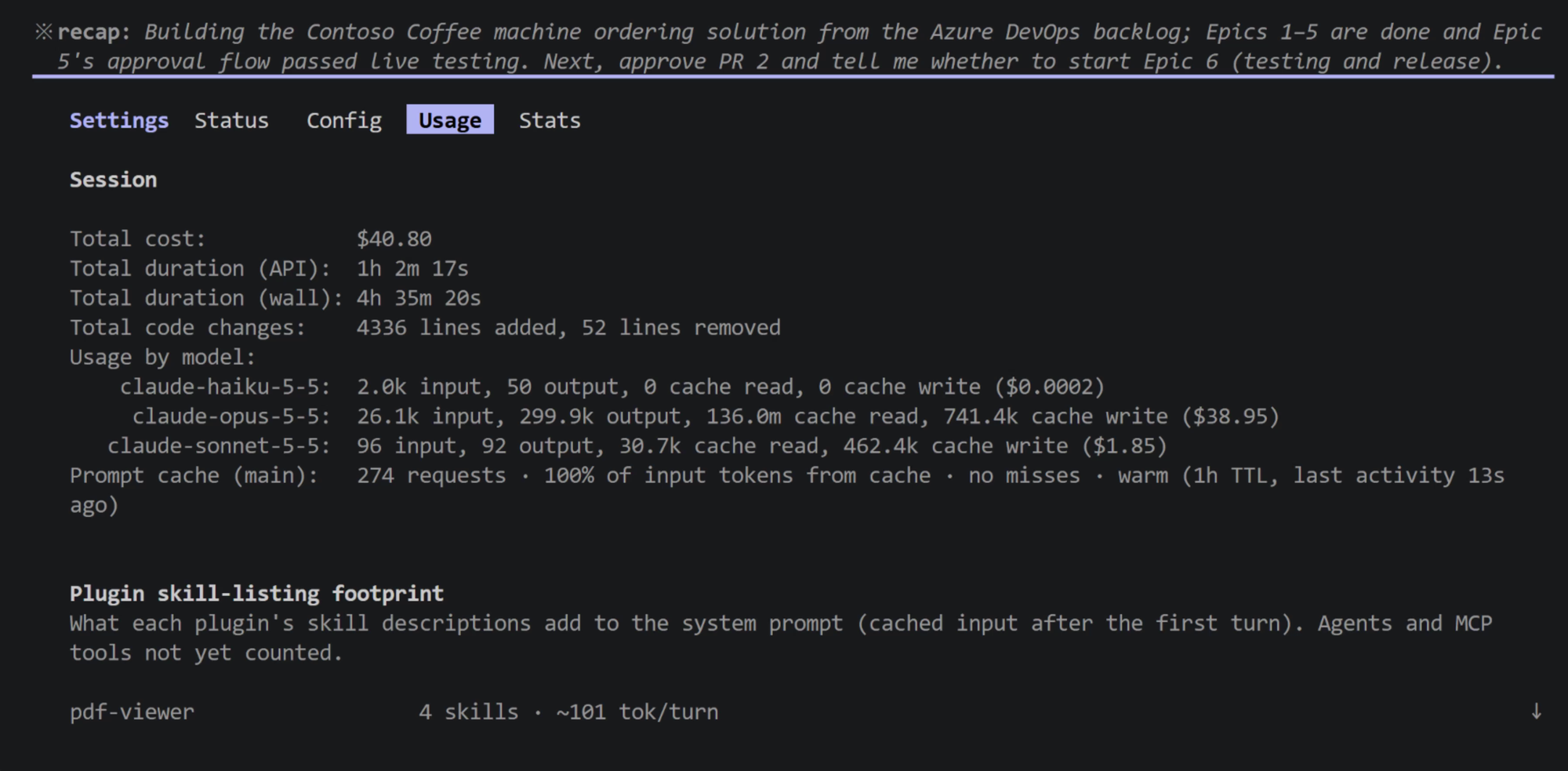
| Azure DevOps estimate | 144 hours |
| Total elapsed time | 4 hours 35 minutes (much of it one-time setup) |
| API time | 1 hour 2 minutes |
| Code written | 4,336 lines |
| Token cost | $40.80 (Haiku, Sonnet and Opus) |
App in a Day is not a perfect benchmark. But the spec, backlog, changelog and source control are things we always should have done and rarely had budget for. Now they come along for the ride.
The takeaway
Treat agents like junior developers. Clear spec, clear backlog, review their work, and step in for the decisions only you can make.
That’s the difference between agentic development and vibe coding slop.
Next, I want to take the same requirements and build them in Copilot Cowork on the new managed runtime. It will be interesting to compare the costs and the output.
Are you still living in the maker portal? Is your team? How well are your product managers updating Azure DevOps with features and user stories? What would you quote to build the Power Platform app-in-a-day solution?
Nick Doelman is a Microsoft MVP (8x), podcaster, trainer, public speaker, and competitive Powerlifter. Follow Nick on X at @readyxrm, Instagram, LinkedIN, and Bluesky.
Need Power Platform expertise, training or implementation help? Check out Nick’s website for more details.
Listen or watch the the Power Platform Boost podcast with Nick and co-host Ulrikke Akerbæk every second week for news and updates from the Power Platform community!